How to Stream from a Laptop
Introduction
Streaming from a laptop opens up a world of possibilities, from sharing gameplay and creative content to broadcasting live events or webinars. Understanding how to effectively stream from your laptop can enhance your online presence and engage your audience. This guide provides a comprehensive look into the essentials of streaming from a laptop. Whether you’re a beginner or looking to refine your technique, this article walks you through the key steps to get started and make your streams look professional and seamless.
Selecting the Right Laptop for Streaming
The foundation of a smooth streaming experience begins with choosing the right laptop. You’ll need a device with enough processing power, memory, and a capable graphics card. Look for laptops with at least an Intel i5 or AMD Ryzen 5 processor, 8GB of RAM, and a dedicated GPU if you plan to stream games or high-resolution content. A high-definition webcam and a reliable internet connection are just as crucial.
Consider the type of content you’ll stream: gaming, webinars, or casual vlogs. Gaming and professional streaming demand more robust hardware, while simpler streams might require less. Portability can be a major factor if you need to stream on the go. Ultimately, balancing performance with your specific needs and budget is key to selecting the right laptop for streaming.
Transitioning from choosing the right laptop, the next step is ensuring that your device is set up optimally for streaming. Proper preparation can significantly impact your streaming quality.
Setting Up Your Laptop for Streaming
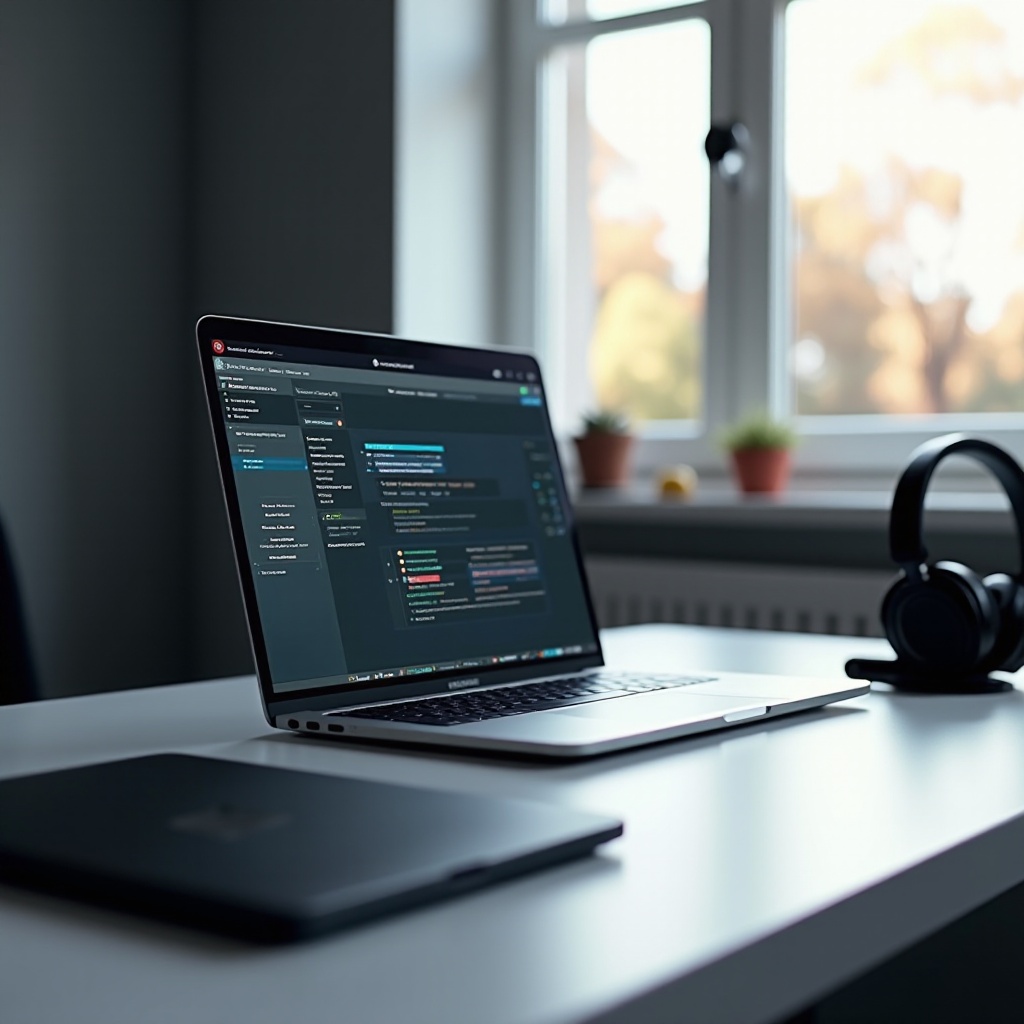
Before you begin streaming, your laptop needs the proper setup. Organize your workspace to ensure it is clutter-free and conducive to streaming. Ensure your laptop is positioned at the right angle, and your webcam is set at eye level for the best presentation.
Connecting a quality microphone improves audio clarity. Moreover, consider using a headset to avoid feedback and echo during your streams. If you’re streaming games, a dual-monitor setup can help you manage your game and stream content more effectively. Use external storage options to keep your laptop’s internal storage optimized for streaming needs.
With your setup ready, the next step is selecting the right software to enhance your streaming adventures.
Essential Streaming Software
Choosing the right streaming software is crucial for a seamless experience. Here are some popular options:
OBS Studio
OBS Studio is a free and open-source software that offers extensive features for broadcasts. It’s highly customizable, supports various plug-ins, and provides powerful features like scene transitions and video filtering. Perfect for those who enjoy a hands-on approach.
Streamlabs
Streamlabs is ideal for users who seek an intuitive interface and integrated tools for stream management. Built on OBS, it provides added features like analytics, chatbox, alerts, themes, and widgets to enhance the viewer engagement on your stream.
XSplit
XSplit is great for beginners who need a straightforward setup. It offers a range of professional-grade features, such as direct streaming to major platforms, scene transitions, and support for multiple inputs. It has both free and premium versions.
Equipped with the right software, you’ll now need to ensure your settings are optimized for the best possible streaming experience.
Configuring Streaming Settings
Configuring your streaming settings optimally can dramatically improve your stream’s quality. First, set your resolution and frame rates based on your internet speed and hardware capability. Establishing a balance between quality and performance is vital.
Choosing the correct bitrate is essential; a higher bitrate offers better video quality but requires more bandwidth. Configure audio settings to ensure clear sound, adjusting the levels to eliminate distortion or noise. Moreover, keep testing your internet connection for stability to prevent interruptions.
Having configured your settings, the next step is understanding how to leverage the most popular streaming platforms.
Streaming on Popular Platforms
Knowing how to stream on different platforms can expand your reach. Here’s how to stream on the most popular options:
YouTube
YouTube offers a user-friendly interface with comprehensive analytics to track your stream’s performance. Set up your stream in YouTube’s Live streaming dashboard, customize the title, description, and thumbnail, and ensure you select the appropriate latency settings for real-time interaction.
Twitch
Twitch is the go-to platform for gamers and creatives. Use Twitch Studio for easy setup or OBS for more control, and integrate chat tools to enhance interaction. Follow Twitch’s guidelines and select categories to boost your channel visibility.
Facebook Live
Facebook Live connects with a vast audience through social media. Schedule broadcasts and promote upcoming streams using Facebook events. Maximize interaction by responding to comments in real-time and sharing your stream across related groups and pages.
As you become familiar with these platforms, you might encounter some common issues. Knowing how to troubleshoot them will keep your streams running smoothly.
Troubleshooting Common Streaming Issues
Streaming problems can arise, but knowing how to address them maintains a smooth experience. For buffering or lag, ensure your internet speed meets your stream’s demands. If the stream quality drops, adjust your bitrate or resolution settings. Audio issues often stem from incorrect microphone settings or poor signal quality, so double-check your configuration. If software crashes or encounters bugs, ensure it’s up-to-date or try reinstalling it.
In addition to troubleshooting, implementing some strategic enhancements can elevate the overall quality of your streams.
Tips for Enhancing Your Streaming Experience
To stand out in the crowded world of streaming, consider these tips for enhancing your live broadcasts:
- Engage with Your Audience: Interactive sessions create loyalty and keep viewers coming back.
- Maintain Consistency: Consistent scheduling builds a habit for your audience, increasing viewers.
- Improve Visuals: Use overlays, transitions, and branding to make your stream visually appealing.
- Optimize Your Setup: Regularly update your software, drivers, and hardware to ensure top performance.
With these enhancements, you’ll be better positioned to deliver high-quality streams and build a loyal viewer base.
Conclusion
Streaming from a laptop involves more than just clicking ‘go live.’ Selecting the right hardware, setting up software, and configuring settings are all part of delivering a quality stream. By following these guidelines, you’ll be well-equipped to share your passion with the world. Happy streaming!
Frequently Asked Questions
What are the best laptops for streaming in 2024?
For 2024, consider laptops like the Dell XPS 15, ASUS ROG Zephyrus, and MacBook Pro 16′. They offer powerful processors and graphics cards ideal for streaming various content types.
How can I improve the video quality of my stream?
Enhance your stream’s video quality by increasing your bitrate, using a good webcam and lighting setup, and ensuring your laptop’s performance can handle higher resolutions.
What internet speed is required for streaming from a laptop?
For HD streaming, aim for an upload speed of at least 5 Mbps. For 4K video quality, you’ll need 20-30 Mbps. Consistent speed and stability matter more than sheer numbers.