How to Safely Remove and Clean Apple Keyboard Keys
Introduction
Maintaining a clean Apple keyboard is essential for an optimal typing experience. This comprehensive guide will teach you how to remove and clean your keyboard keys effectively, whether you’re dealing with a MacBook or a Magic Keyboard. This knowledge will not only preserve the functionality of your device but also extend its lifespan.
Getting familiar with your specific Apple keyboard is important as each type may require a slightly different method for key removal. We’ll explore various models next.
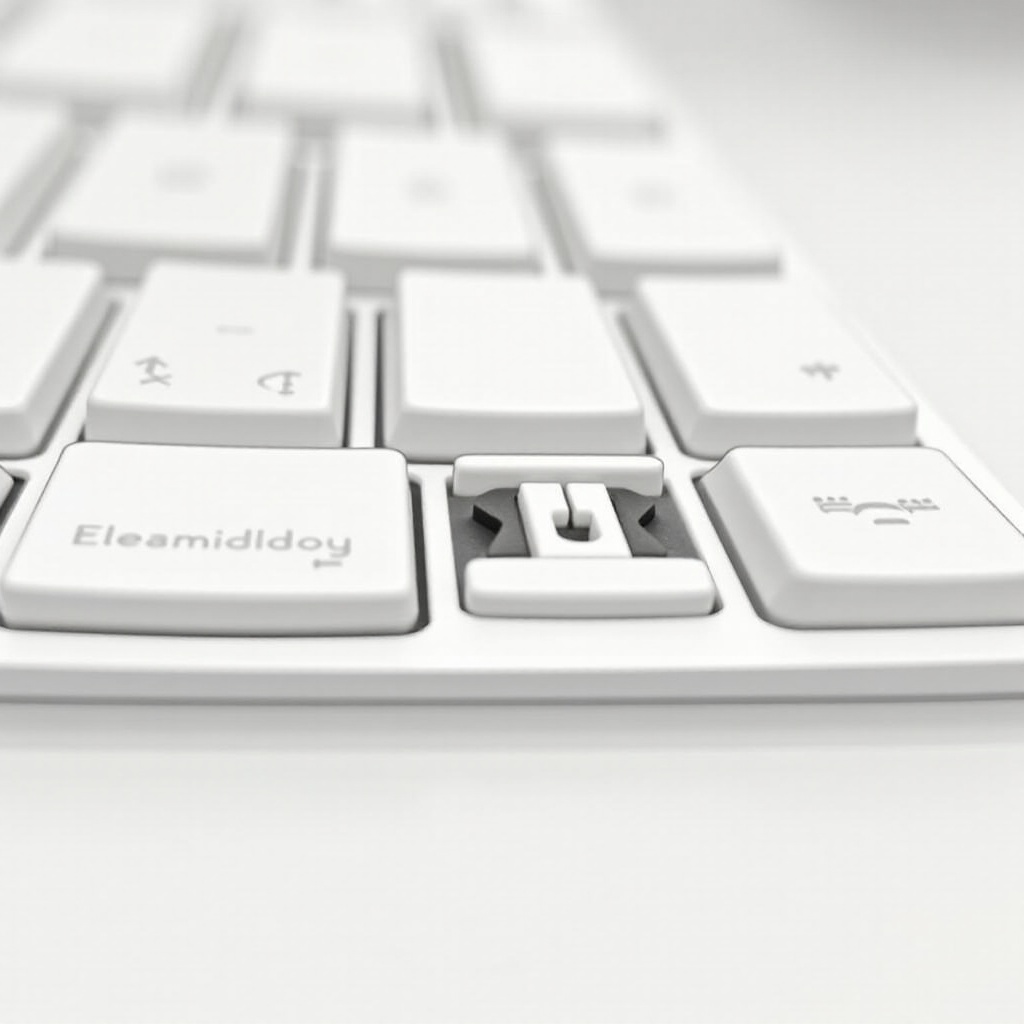
Understanding Apple Keyboard Types
Apple offers a diverse range of keyboards, each with unique characteristics that influence the key removal process.
- MacBook Keyboards: Known for their integrated and low-profile design.
- Magic Keyboards: These are external, wireless, and feature a different key mechanism.
Understanding these distinctions is vital for choosing the correct approach, which leads seamlessly into the preparation phase.
Preparing for Key Removal
Preparation is key to avoiding damage during the key removal process. Ensure you have the right tools and understand safety precautions.
Tools and Materials Needed:
– A plastic or rubber pry tool
– Compressed air canister
– Microfiber cloth
– Isopropyl alcohol (90% or higher)
– A small, soft brush
Safety Precautions:
– Turn off and unplug your device.
– Work on a stable, well-lit surface.
– Avoid metal tools to prevent scratching.
Once you’re prepared, you can move into the removal process.
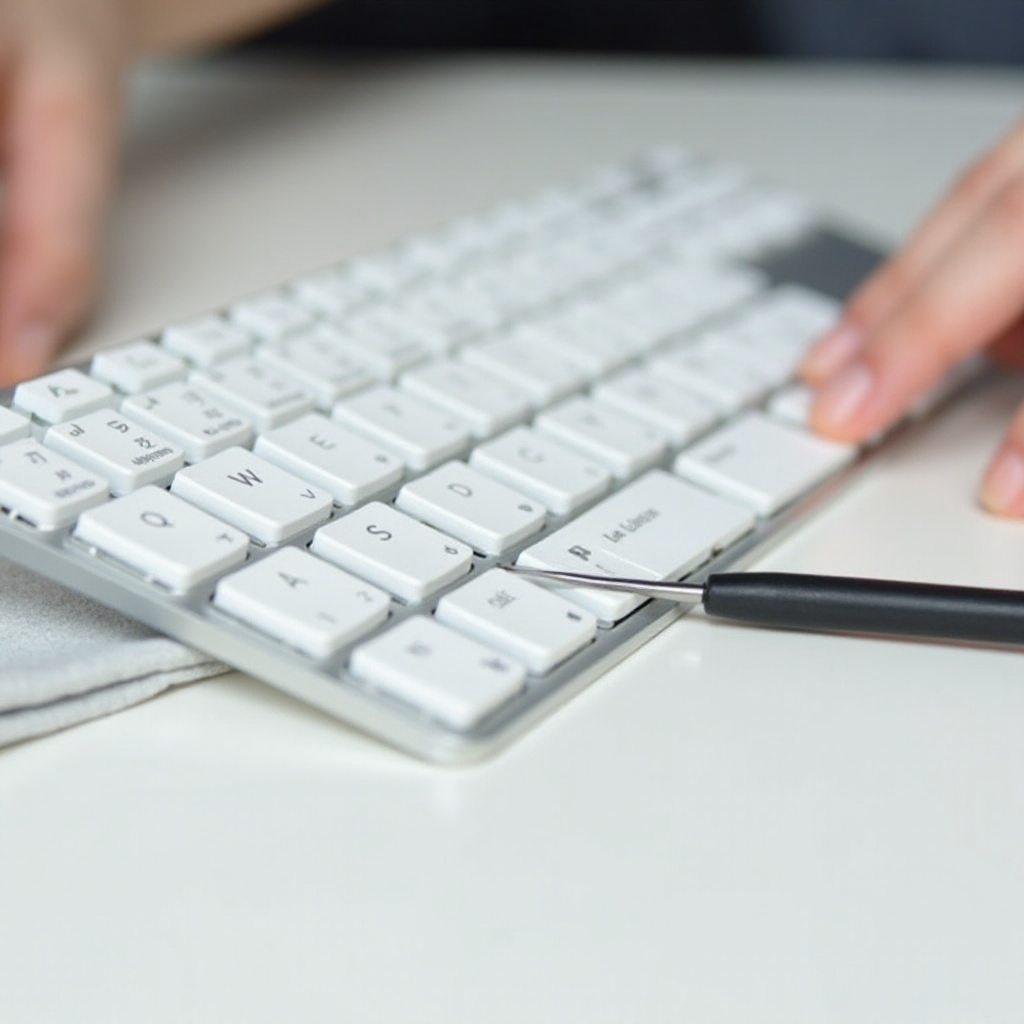
Step-by-Step Guide to Removing Keys
Here’s a comprehensive guide to help you remove keys from your Apple keyboard efficiently.
MacBook Keyboards:
1. Insert the pry tool under the edge of the keycap gently.
2. Lift the keycap steadily until it detaches.
3. Be cautious with the delicate mechanism beneath.
Magic Keyboards:
1. Carefully leverage the pry tool beneath the keycap.
2. Wiggle slightly to ease the keycap off.
3. Remove the keycap while preserving the supporting structure.
Post-removal, effective cleaning is the next step to ensure your keyboard’s cleanliness.
Cleaning the Keys and Keyboard
Effective cleaning involves more than surface wiping, targeting deeper debris and preventing damage.
Cleaning Steps:
– Use isopropyl alcohol on a microfiber cloth to gently clean each keycap.
– Employ compressed air to blow away debris under the keys.
– For persistent dirt, use a soft brush to loosen particles.
Proper cleaning enhances both the appearance and performance of your keyboard. Next, we’ll focus on reassembling your device.
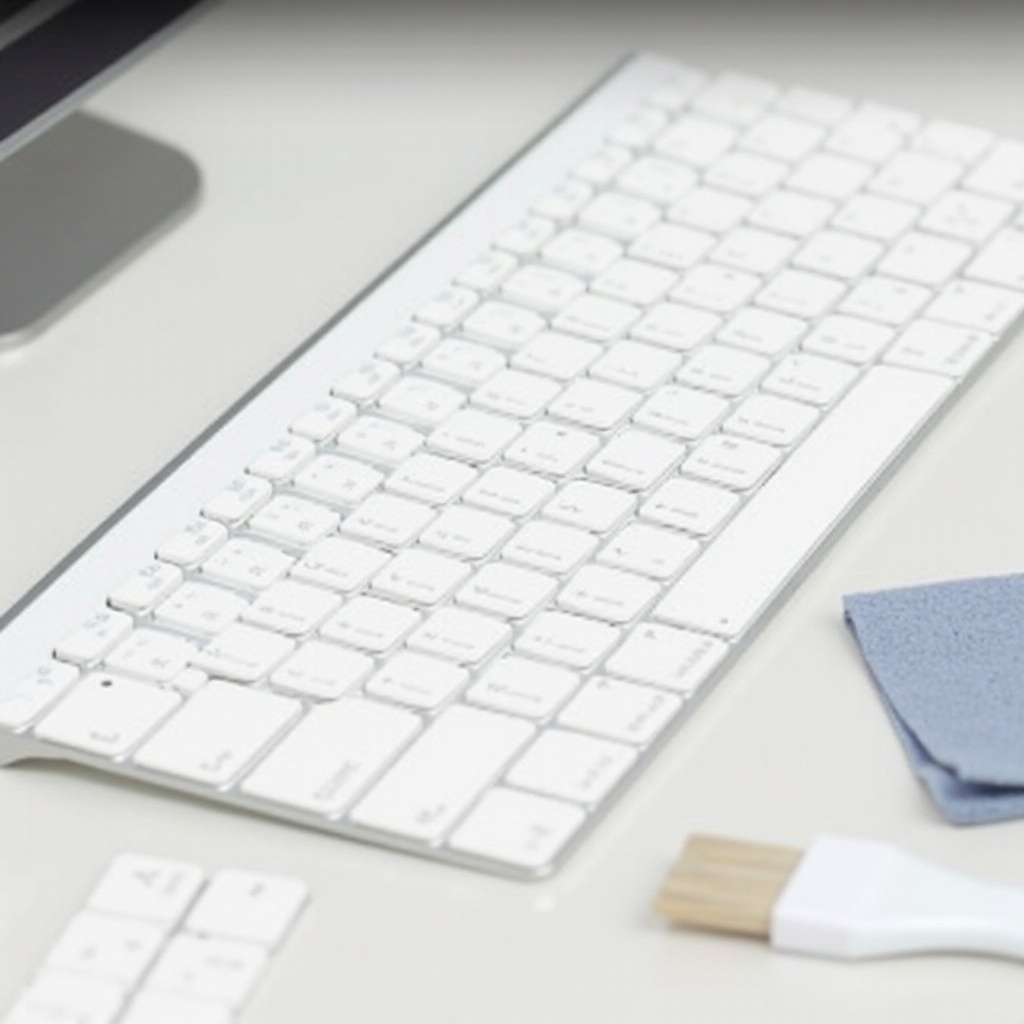
Reassembling Your Keyboard
Reinstallation of keys is critical for maintaining keyboard functionality and ensuring each key responds accurately.
Steps to Reassemble:
1. Align each keycap with its corresponding mechanism.
2. Press down until you hear a click, indicating it’s secured.
3. Confirm alignment by testing key response.
A properly reassembled keyboard should work seamlessly, but occasionally, issues might arise.
Troubleshooting Common Issues
Sometimes, removing and reassembling keys can present challenges. Addressing these swiftly ensures ongoing functionality.
Common Issues and Solutions:
– Stubborn or Stuck Keys: Re-examine key alignment and remove any lingering debris.
– Non-functioning Keys: Ensure keys are attached correctly and mechanisms are intact.
Proper troubleshooting ensures a smoothly operating keyboard. Lastly, let’s summarize what we’ve covered.
Conclusion
Consistent maintenance through regular key removal and cleaning helps preserve your Apple keyboard’s quality and performance. By following these steps, you can safeguard your keyboard from potential damage and maintain an enjoyable typing experience. Regular upkeep will undoubtedly extend the longevity of your device.
Frequently Asked Questions
Can I remove keys from all Apple keyboard models?
Yes, you can remove keys from all Apple keyboards, but procedures vary for different models.
What should I do if a key breaks during removal?
If a key breaks, contact Apple Support or visit an authorized service provider for a replacement.
Is it safe to submerge keyboard keys in water?
No, submerging keys in water can cause damage. Use alcohol and a microfiber cloth for cleaning.