How to Open the Samsung Tablet: A Comprehensive Guide
Introduction
Opening a Samsung tablet doesn’t have to be a daunting task. With the right preparation and methodology, you can ensure a smooth process. This guide will provide detailed instructions on how to carefully open your tablet, allowing access to internal components for repair or inspection purposes.
Preparation Before Opening
Before you begin, preparing adequately can make all the difference in ensuring a successful operation.
-
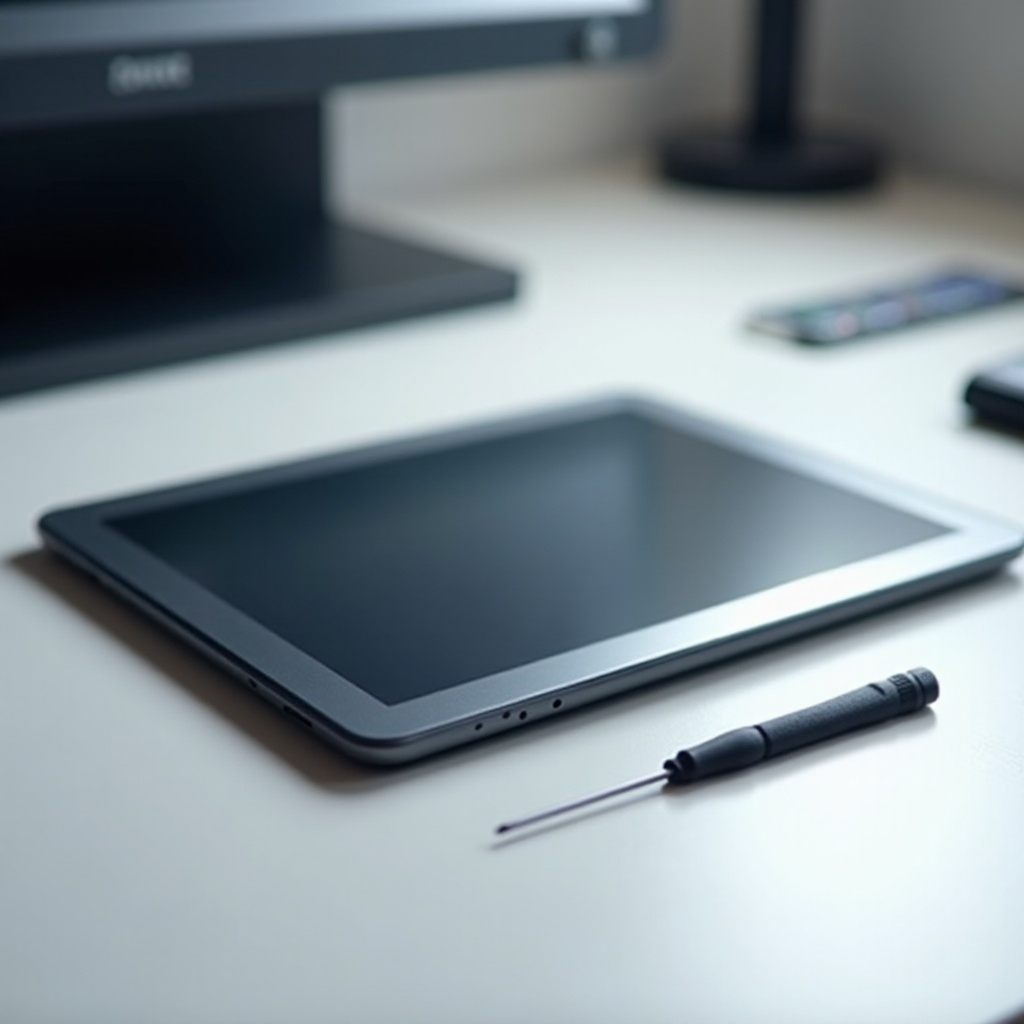
Gather Your Tools: To open your tablet safely, you’ll need a precision screwdriver set, plastic pry tools, tweezers, and an anti-static wrist strap. Using the right tools can prevent damage to delicate parts.
-
Ensure a Safe Workspace: Arrange for a clean, well-lit, static-free workspace. A solid, flat surface is crucial for minimizing accidental static electricity that could damage electronic components.
-
Back Up Your Data: Always back up important data before you proceed. While the aim is to avoid damaging your tablet, being prepared for unexpected occurrences is vital.
With these preparations complete, you’re now ready to move onto opening your Samsung tablet.

Step-by-Step Guide to Opening Your Samsung Tablet
Handling your Samsung tablet requires care and precision. Here’s how to proceed:
-
Power Off the Device: Ensure your tablet is completely turned off before beginning. This step is crucial to prevent electrical shocks or damage.
-
Remove External Accessories: Detach any covers, cases, or screen protectors for unobstructed access to your tablet’s hardware.
-
Locate and Remove Screws: Most Samsung tablets have screws around the edges. Use a precision screwdriver to remove them carefully, keeping them safe for later reassembly.
-
Carefully Pry Open the Device: Using a plastic pry tool, gently separate the back cover from the front panel. Work slowly from a corner and proceed around the edges to avoid cracking the case.
-
Disconnect the Battery (If Necessary): If battery inspection or replacement is your goal, use tweezers to gently disconnect the battery connector.
Once opened, you’ll have access to address any internal issues effectively.
Identifying and Troubleshooting Common Issues
Upon opening your tablet, you might encounter typical issues needing resolution.
-
Battery Problems: A common issue is battery performance. Check for swelling or leakage, and consider replacement if needed.
-
Screen Replacement: Deal with screen faults by detaching the old screen properly and fitting a correctly aligned replacement.
-
Port and Connectivity Issues: Inspect all ports and connectors. Dust or damage can affect performance, so use compressed air for cleaning.
After resolving these issues, you’re ready to proceed to reassemble your device.

Safely Reassembling Your Tablet
With your troubleshooting complete, reassemble your tablet carefully following these steps:
-
Reattach Internal Components: Start with reconnecting the battery, ensuring it’s secure as well as all other connectors.
-
Secure the Back Cover: Align the back panel and press it into place until you hear a click, indicating it’s secure. Use the screws you removed earlier to fasten it.
-
Power On and Test: Once assembled, turn on the tablet to check its functionality. Make sure the screen, ports, and all features are working properly.
Conclusion
By following these step-by-step guidelines, you can successfully open and reassemble your Samsung tablet when repairs or inspections are necessary. This guide helps you accomplish this task safely, minimizing the risk of damage. Always reach out to a professional if you feel unsure at any point in the process.
Frequently Asked Questions
Is it easy to open all Samsung tablet models?
Opening procedures differ between models due to unique constructions. Consult your specific model’s manual for guidance.
Will opening my Samsung tablet void the warranty?
Generally, opening the device voids the warranty. Check the warranty terms or consult Samsung before proceeding.
How can I ensure I’m using the correct tools?
Purchase a repair tool kit designed for electronics. These usually contain all necessary tools for safe device repair.