How to Fix: Can’t Hear Out of iPhone Ear Speaker
Introduction
Encountering issues with your iPhone ear speaker can be incredibly frustrating, especially when you’re unable to hear clearly during calls. This problem can arise from a variety of causes, ranging from simple software glitches to more complex hardware issues. In this comprehensive guide, we’ll explore the common causes behind iPhone ear speaker problems and offer practical solutions to help you resolve them quickly. Let’s begin with understanding the potential reasons for these issues.
Common Causes of iPhone Ear Speaker Issues
To effectively address ear speaker issues, it’s important first to identify the root cause. These problems often stem from both hardware and software-related issues.
-
Hardware vs. Software Problems: Differentiating between hardware and software problems is essential. While software glitches might be fixed with updates or resets, hardware issues may require professional repair.
-
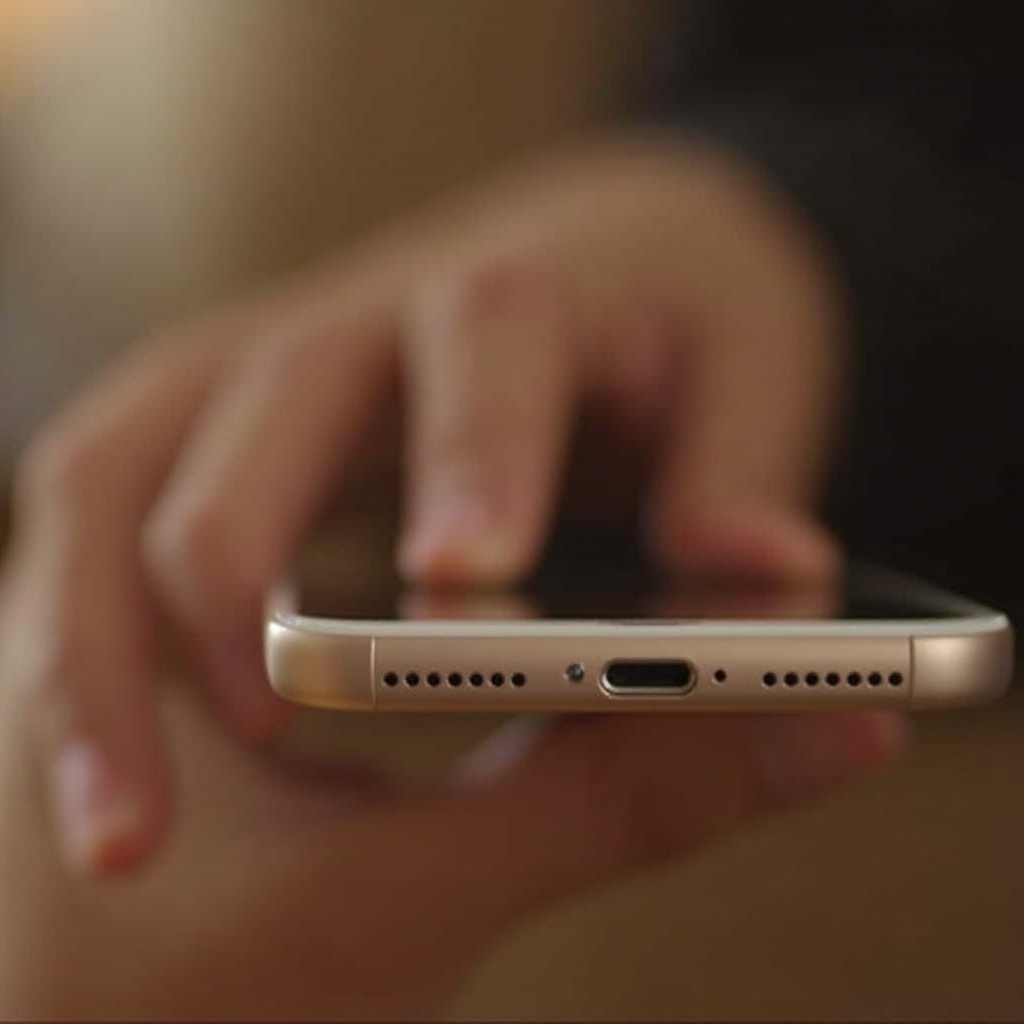
Dust and Debris Accumulation: Dust and debris can accumulate over time and block the ear speaker grill, affecting sound quality.
-
Software Updates and Glitches: Occasionally, your device might face glitches or outdated software that hampers audio performance. Keeping your iOS updated can help avoid such disruptions.
Having identified the causes, it’s time to move onto troubleshooting these issues, starting with simple steps you can take at home.
Initial Troubleshooting Steps
Before seeking professional help, there are a few initial troubleshooting steps that you can perform independently to try and resolve the issue.
-
Adjust Volume Settings: Double-check that your phone’s volume isn’t accidentally set to low or mute. Use the volume buttons to increase the sound.
-
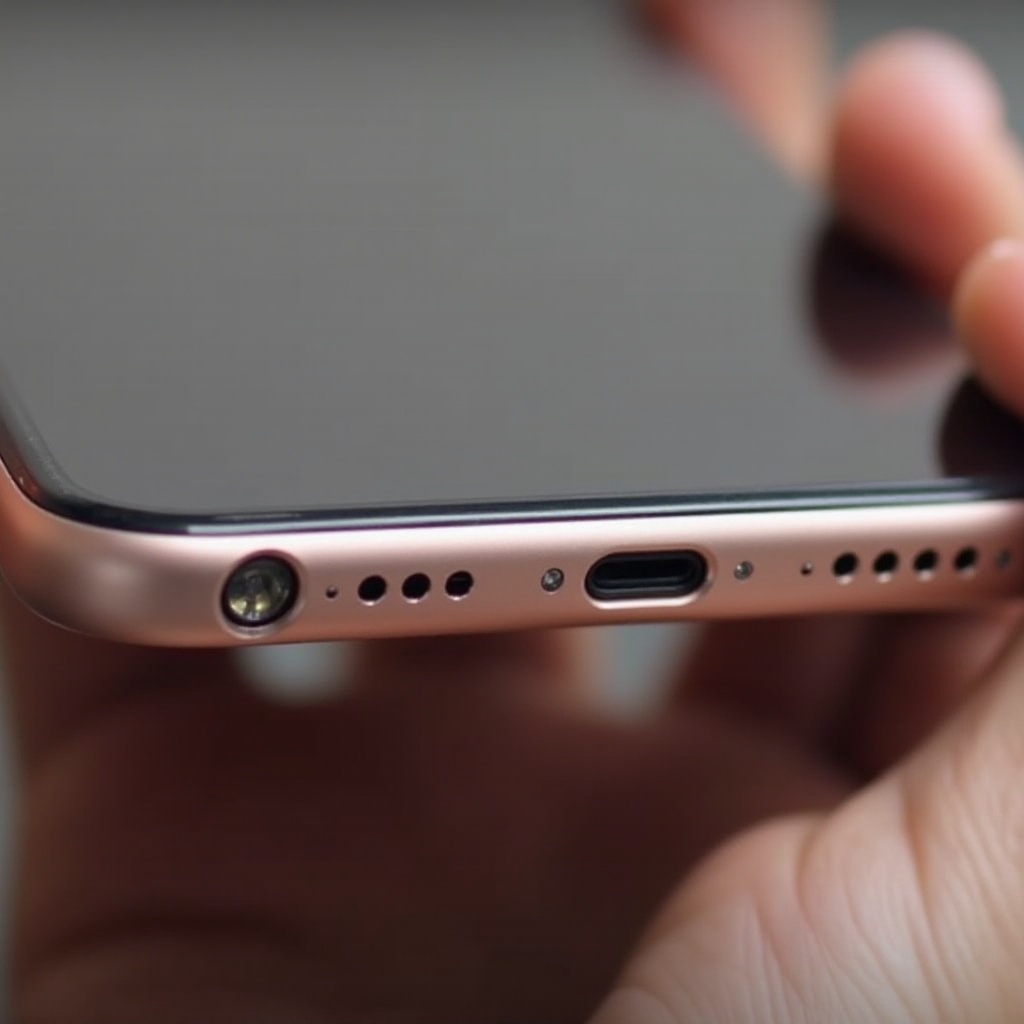
Clean the Ear Speaker: Gently clean the ear speaker grill with a soft-bristled brush or toothpick to remove any dirt or debris.
-
Restart Your iPhone: Restarting your device can address temporary software issues. Hold the power button and follow prompts to restart the device.
These basic steps help tackle minor issues with ease. If the issue persists, more advanced troubleshooting is required.
Advanced Fixes for Persistent Issues
When initial troubleshooting doesn’t resolve the sound problem, consider these advanced fixes that focus more extensively on device settings and configurations.
-
Reset All Settings: Head to Settings > General > Reset > Reset All Settings. This won’t delete your data, but can correct system settings causing audio issues.
-
Update or Reinstall iOS: Ensure your iOS is current by going to Settings > General > Software Update. Perform this regularly to prevent potential software conflicts.
-
Restore iPhone as New (Factory Reset): As a last resort, consider performing a factory reset. Backup your data, then go to Settings > General > Reset > Erase All Content and Settings.
Having tackled more advanced software solutions, it’s time to consider potential hardware issues that might be affecting your phone’s audio.
Identifying and Addressing Hardware Problems
Persistent sound issues can sometimes be attributed to hardware failures. Here’s how to identify and address issues linked to hardware.
-
Signs of Hardware Damage: Inspect for physical signs of damage such as cracks or water damage. In such cases, professional repair is advisable.
-
Ear Speaker Replacement Options: If issues persist, consider replacing the ear speaker. For those experienced, at-home replacements are an option; otherwise, professional assistance is recommended.
Shifting from do-it-yourself fixes, let’s explore professional support and repair options.
Professional Repair and Support Options
When your own efforts don’t yield results, it’s time to consult professionals. Here’s how.
-
Apple Support: Verify your warranty or AppleCare status for potential coverage on repairs. Apple’s official support can help diagnose the problem accurately.
-
Certified Repair Centers: For in-person assistance, certified repair centers offer reliable and often fast fixes, depending on their work schedule.
Once repaired, adopting preventative measures will minimize the recurrence of these issues.
Tips to Prevent Future Ear Speaker Problems
Preventing ear speaker issues is easier with regular maintenance and care. Follow these precautions to keep your iPhone in optimum condition.
-
Regular Maintenance and Care: Clean your device regularly and store it in a dust-free environment to ensure prolonged service life.
-
Invest in Protective Accessories: Use durable cases and screen protectors to prevent physical damage that could impact the ear speaker.
By adopting these preventive strategies, your device will remain free of audio issues in the future.
Conclusion
Ensuring your iPhone’s ear speaker functions correctly is crucial for maintaining clear communication. This guide has presented you with a suite of solutions, from simple cleaning methods to complex resets, ensuring your device works flawlessly. Don’t hesitate to engage professional help when needed, and use the prevention tips as a proactive measure. With these actions, you can avoid future disruptions and enjoy uninterrupted phone functionality.
Frequently Asked Questions
Why can’t I hear out of my iPhone ear speaker even on high volume?
Various reasons include software glitches, debris accumulation, or hardware damage can cause this. Try cleaning the speaker grill and updating your iOS.
Can using third-party apps help improve my iPhone’s ear speaker performance?
Using third-party diagnostic apps can identify issues, but they often can’t fix hardware problems. Rely on trusted methods for real fixes.
Should I always consult Apple Support for ear speaker issues, or can I try fixes myself?
While many issues can be resolved at home, consulting Apple Support is wise for persistent or hardware-related problems to avoid further damage.