How to Fix a Non-Responsive Mousepad on Your Chromebook
Introduction
When your Chromebook’s mousepad stops responding, it can disrupt your productivity and become a significant annoyance. The mousepad is a pivotal tool for navigating and executing tasks efficiently. Understanding how to address and resolve these issues quickly can restore peace and functionality to your work routine. This guide will walk you through identifying potential problems and employing effective solutions to get your mousepad working smoothly again.
Understanding Common Chromebook Mousepad Issues
Several factors can contribute to a malfunctioning mousepad on your Chromebook. Identifying the root cause is crucial for selecting the appropriate solution. Common culprits include:
- Software Glitches: Bugs and errors within the operating system can cause the mousepad to malfunction.
- Driver or Update Errors: Outdated drivers or incomplete software updates can disrupt hardware compatibility.
- Hardware Issues: Physical damage or deterioration of components may impact the mousepad’s effectiveness.
Recognizing these issues allows you to tailor your troubleshooting approach to address the specific problem effectively.

Basic Troubleshooting Steps for Chromebook Mousepad
For many users, elementary troubleshooting can resolve the issue. Start with these straightforward steps:
-
Check if the Mousepad is Disabled: Navigate to the status area at the bottom right of your screen. Click ‘Settings,’ go to ‘Device,’ and ensure ‘Touchpad’ is enabled.
-
Reboot Your Chromebook: A simple restart can clear temporary glitches. Turn off your device, then power it back on to see if functionality returns.
-
Perform a Hardware Inspection: Physically inspect the mousepad for debris or physical damage that could be affecting its performance. Clean the surface gently with a soft, dry cloth.
If these initial steps don’t rectify the issue, it’s time to explore more advanced solutions.
Advanced Solutions for Mousepad Problems
In cases where basic troubleshooting fails, more in-depth measures may be necessary.
-
Update the Chrome OS: Keeping your software up-to-date is vital. Access the status area, select ‘Settings,’ navigate to ‘About Chrome OS,’ and apply any available updates. A newly updated OS can resolve many software-related complications.
-
Reset Mousepad Settings: If adjustments to settings cause issues, restoring the default settings could help. Under ‘Device’ and ‘Touchpad’ in ‘Settings,’ reset the configurations to their original state.
-
Perform a Hard Reset: A hard reset can clear persistent software hang-ups. Shut down your Chromebook, press and hold the Refresh key and Power button simultaneously. Release when the device restarts.
These advanced solutions should be able to address most of the software and settings-related mousepad issues.
Dealing with Hardware Failures
If software solutions are ineffective, the problem might be hardware-related.
-
Assessing Physical Damage: Look closely for physical signs of damage. If your Chromebook has experienced falls or exposure to liquids, professional repairs might be necessary. Small particles or residues can usually be removed with gentle cleaning.
-
Seeking Professional Repair Services: For substantial damage or unresolved issues, turn to professional repair services. Manufacturer support or a certified technician can provide expert diagnostics and repair services.
By ensuring that your Chromebook receives professional care, you minimize risks of aggravating the damage further, keeping your device in optimal working condition.
Using External Input Devices as Alternatives
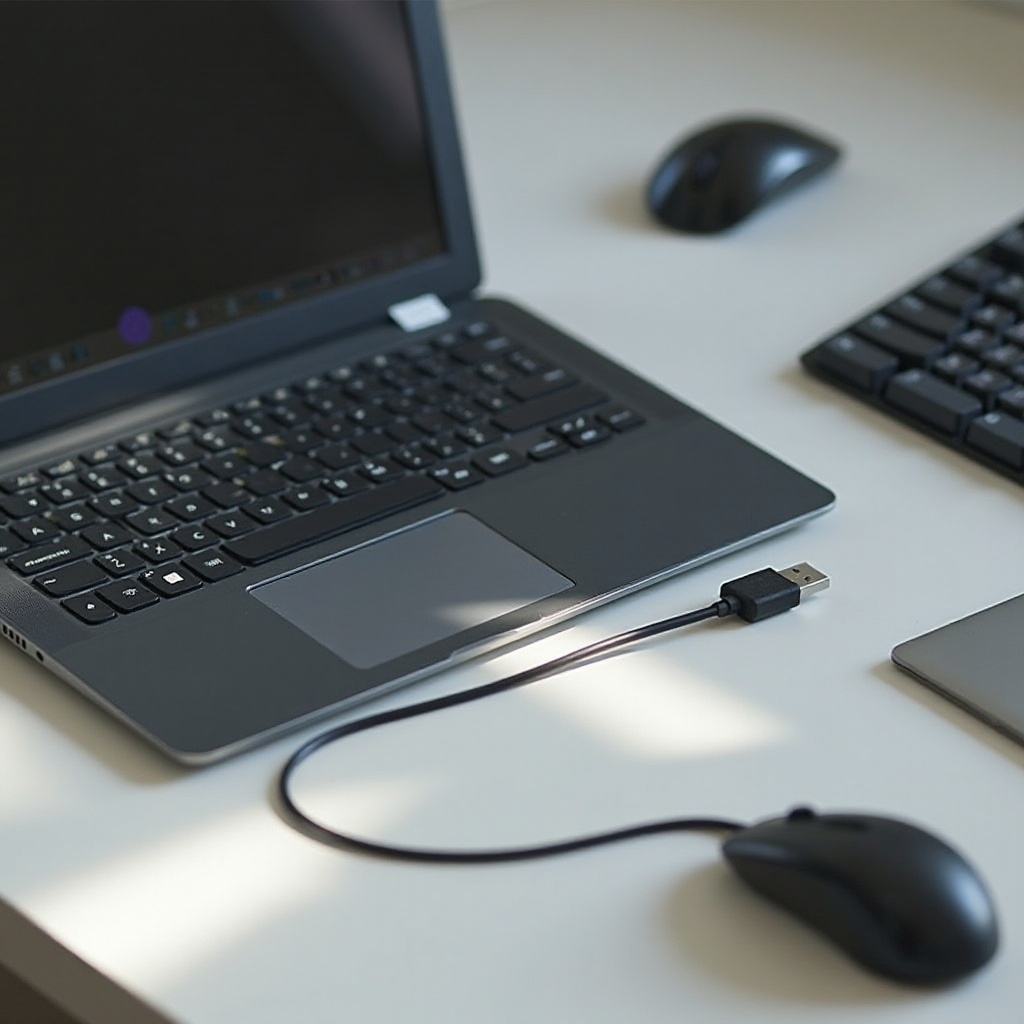
While you address mousepad issues, using an external mouse can keep you productive.
- Connect a USB or Bluetooth mouse for continued use.
- External devices typically offer seamless integration with Chromebooks, providing a straightforward temporary solution.
This workaround helps maintain your workflow until your built-in mousepad is fully operational again.
Conclusion
When faced with a non-responsive mousepad on a Chromebook, systematically diagnosing and applying the appropriate solutions is key. From basic settings checks to advanced troubleshooting and possible hardware evaluations, following these steps will likely restore full functionality. Regular updates and proper handling can further prevent many common issues, ensuring your device remains reliable and efficient.
Frequently Asked Questions
How do I enable the mousepad on my Chromebook?
To enable the mousepad, go to the status area, click ‘Settings,’ then navigate to ‘Device’ and ‘Touchpad.’ Ensure the toggle is switched on.
Why does my Chromebook mousepad work intermittently?
Intermittent touchpad behavior can result from software conflicts or dirt on the touchpad. Updating your Chrome OS and cleaning the touchpad’s surface can help.
Can software updates resolve mousepad issues on my Chromebook?
Yes, keeping your Chrome OS updated can resolve many underlying software issues that might cause your mousepad to malfunction. Always ensure you’re running the latest OS version for optimal performance.